Black Spot on Laptop Screen: Causes, Fixes & Prevention Guide
 Rachel Hickman
 A black spot suddenly appearing on your laptop screen can be alarming. You're working on an important document, watching a video, or browsing the web when you notice it—a dark mark that won't go away no matter how many times you wipe the display. These spots can range from tiny pinpoints to larger blotches that interfere with your viewing experience.
Understanding what causes these marks and how to address them can save you from unnecessary repairs or help you decide when professional intervention is truly needed. The good news? Not all black spots mean your laptop is doomed. Some are fixable at home, while others require technical expertise.
What Exactly Is a Black Spot on Your Laptop Screen?
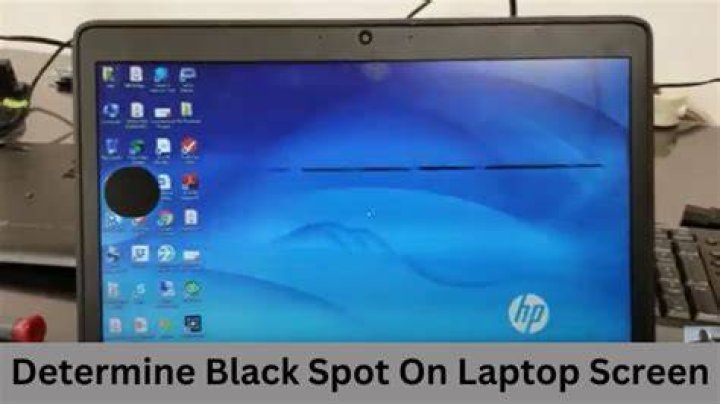
Black spots on laptop displays typically fall into three categories: stuck or dead pixels, pressure damage, or liquid crystal bleeding. Each has distinct characteristics that help identify the root cause.
Dead pixels appear as small black dots that remain dark regardless of what's displayed on screen. A stuck pixel, conversely, might show as a persistent colored dot—red, green, or blue—because one or more sub-pixels remain permanently on. Pressure damage creates irregular dark patches, often with a spreading pattern. These occur when something presses too hard against the screen, damaging the liquid crystal layer beneath the glass.
Liquid crystal bleeding happens when the delicate LCD layer gets punctured or cracked internally. This creates dark areas that may expand over time, sometimes accompanied by discoloration around the edges.
Common Causes Behind Screen Damage
Physical trauma tops the list. Closing your laptop with a pen, earbuds, or any object on the keyboard can create concentrated pressure points. Even a firm poke with your finger might damage sensitive display components. I've seen cases where people accidentally stepped on a laptop in a bag or placed heavy books on a closed device.
Manufacturing defects occasionally slip through quality control. Some displays have weak spots in the LCD panel or inadequate protective layers. These flaws might not manifest immediately but become visible after months of normal use.
Temperature extremes stress display materials. Leaving your laptop in a hot car or exposing it to freezing conditions can weaken the liquid crystal layer, making it more susceptible to developing dark spots. The expansion and contraction of materials at different rates creates internal pressure.
Age plays a role too. Older laptops naturally experience component degradation. The backlight may develop uneven brightness, making existing small defects more noticeable. Screen adhesives can deteriorate, allowing layers to separate slightly.
Diagnosing Your Specific Problem
Start by determining the spot's characteristics. Display a pure white background by opening a blank document or searching for "white screen test" online. Does the spot remain consistently black? That suggests dead pixels or physical damage.
Check if the spot changes with different colors. Run red, green, and blue full-screen tests. A stuck pixel might disappear on certain colors while remaining visible on others. Dead pixels stay black regardless.
Examine the spot's edges. Sharp, well-defined borders typically indicate pixel-level issues. Fuzzy, irregular edges with gradual darkening suggest pressure damage or LCD bleeding. Press gently around the affected area—if the spot changes shape or intensity, you're dealing with physical damage to the display layers.
Look for accompanying symptoms. Cracks in the glass, even hairline fractures, often coincide with black spots. Screen flickering near the dark area points to connection issues or deeper electrical problems. Spreading discoloration indicates progressive damage that will likely worsen.
Home Remedies Worth Trying
For stuck pixels, pixel-fixing software can help. These programs rapidly cycle through colors at the affected spot, sometimes unsticking the problematic sub-pixel. JScreenFix and PixelHealer are popular free options. Run them for 20-30 minutes while monitoring the area. Success rates vary, but this costs nothing to attempt.
Gentle pressure technique works occasionally. Display a black screen, then use a soft, lint-free cloth to apply very light pressure directly on the stuck pixel. Move in small circles for 5-10 seconds. Release slowly. The goal is to redistribute the liquid crystal without causing further damage. This method is controversial—proceed cautiously and stop immediately if the spot worsens.
Heat and cold therapy has mixed results. Some technicians warm the affected area with a barely-warm cloth (never hot) or cool it with a gel pack wrapped in fabric. Temperature changes might restore liquid crystal flow. However, this approach carries risks and isn't widely recommended by manufacturers.
Screen replacement remains the only guaranteed solution for dead pixels, pressure damage, or LCD bleeding. Everything else is essentially attempting to work around permanent hardware failure.
When Professional Repair Makes Sense
Calculate the cost-benefit ratio first. Screen replacements for modern laptops range from $100 to $500 depending on the model and display quality. High-end machines with 4K or OLED panels cost more. Compare repair costs against your laptop's current value.
Warranty coverage changes the equation dramatically. Many manufacturers cover display defects within the first year. Dell, HP, and Lenovo have specific policies regarding pixel defects—often requiring a minimum number of dead pixels before authorizing free replacement. Check your warranty status before paying out of pocket.
DIY screen replacement is possible for tech-savvy users. Replacement panels are available online, often significantly cheaper than repair shop prices. You'll need basic tools and patience. YouTube tutorials guide you through the process for most laptop models. Risk assessment is crucial—one mistake might damage other components.
Authorized service centers guarantee compatible parts and proper installation. Third-party repair shops may use aftermarket screens that differ in color accuracy or brightness. Ask about parts sourcing and warranty on the repair work itself.
Prevention Strategies That Actually Work
Never close your laptop without checking the keyboard surface. That split-second glance prevents 90% of pressure-related damage. Small objects create devastating damage when caught between screen and keyboard.
Invest in a quality laptop sleeve or case. Hard-shell cases provide superior protection against bumps and drops. Padded sleeves cushion against pressure when the laptop shares bag space with books or other items. Cheap protection beats expensive repairs.
Handle your laptop by the base, not the screen. Gripping the display to open or move the device stresses the LCD panel. The screen should only be touched when cleaning or making specific adjustments.
Clean properly using microfiber cloths slightly dampened with distilled water or specialized screen cleaner. Harsh chemicals or abrasive materials scratch protective coatings, making the display vulnerable. Never spray liquid directly onto the screen—apply to the cloth first.
Maintain moderate temperature conditions. Don't leave laptops in vehicles where temperatures fluctuate wildly. Allow cold laptops to reach room temperature before powering on to prevent condensation inside the display.
Understanding Laptop Screen Technology
Modern laptops use various display technologies, each with unique vulnerabilities. Traditional LCD screens sandwich liquid crystals between polarized glass layers. Backlighting illuminates the crystals, which twist to allow or block light. Damage to any layer creates visible defects.
IPS panels offer better viewing angles and color reproduction but remain susceptible to pressure damage. TN panels are cheaper and faster but show image quality degradation more readily. OLED screens eliminate backlighting, using self-emissive pixels. They're less prone to backlight bleeding but can develop burn-in over time.
The digitizer layer in touchscreen laptops adds another potential failure point. Damage here might not create black spots but can affect touch sensitivity around damaged areas. Understanding your specific display type helps set realistic expectations about repairability.
Frequently Asked Questions
Can a black spot on my laptop screen spread?
Yes, certain types of damage progressively worsen. LCD bleeding from internal cracks often expands as the damaged area grows. Dead pixels usually remain isolated, but surrounding pixels might fail if the underlying cause affects a broader region. Pressure damage can spread if the initial structural compromise weakens adjacent areas. If you notice expansion, stop using the laptop and seek professional assessment to prevent total screen failure.
Is it safe to keep using a laptop with a black spot?
Depends on the cause. Dead pixels pose no safety risk—they're annoying but don't indicate broader problems. However, if the spot resulted from a cracked LCD layer, continued use might worsen the damage. Sharp screen fragments rarely cause injury but could scratch the display further. The bigger concern is whether the damage indicates impact that also affected internal components like the hard drive or motherboard.
Do laptop screen protectors prevent black spots?
Screen protectors primarily guard against scratches, not the internal pressure damage that causes most black spots. They provide minimal cushioning. A keyboard cover offers better protection by preventing objects from pressing against the screen when closed. Combining both adds layers of defense, but neither eliminates risk from drops or excessive force.
Making the Right Decision
Assess your laptop's overall condition and remaining useful life. A three-year-old mid-range laptop with a failing screen might not justify a $300 repair. But a six-month-old premium machine still under warranty absolutely deserves attention.
Consider how the spot affects your work. A small dark area in the corner might be tolerable. A large spot in the center of your display genuinely hampers productivity and eye comfort. Quality of life matters when you spend hours daily staring at that screen.
External monitors provide a practical workaround. If your laptop otherwise performs well, connecting to an external display sidesteps the damaged screen entirely. This solution costs $100-200 for a decent monitor—often less than screen replacement—while maintaining your laptop's functionality for stationary work.
Black spots remind us that laptops, despite their durability, house delicate components requiring care. Whether you pursue repair or adaptation depends on individual circumstances. The key is making an informed choice based on accurate diagnosis rather than panic or wishful thinking.